


Cell profile : Use the cell profile to make applications available to the Internet or to an intranet under the management of the deployment manager.
Creation of a cell profile generates a deployment manager profile and a federated node profile in one iteration through the Profile Management tool. The result is a fully functional cell on a given system.
Important Terms in WAS
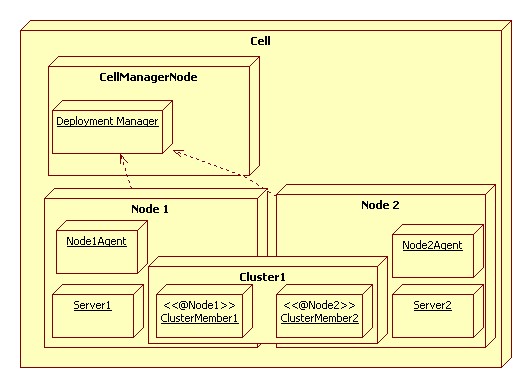
Cell : Represents a logical grouping of multiple nodes for administrative purposes.
Node : Represents a physical system running one or more WebSphere servers.
Server : Represents an instance of a Java™ virtual machine (JVM).
Cluster : Represents a logical grouping of multiple application servers within a cell for administration, application deployment, load balancing, and failover purposes.
Federation :The process of joining a stand-alone WebSphere node to a WebSphere cell.
Picture to visualize the things :

For all of them i suggest strongly one thing try to use df command as like below first
df -h
tvt2086:/products/WAS64ZLX # df -h
Filesystem Size Used Avail Use% Mounted on
/dev/dasda1 4.2G 3.8G 347M 92% /
udev 1001M 140K 1001M 1% /dev
/dev/dasdf1 1.3G 14M 1.2G 2% /tools
/dev/mapper/pvols-lhome
2.0G 33M 2.0G 2% /home
/dev/mapper/pvols-products
6.2G 79M 6.1G 2% /products
/dev/mapper/pvols-ltmp
1.0G 33M 992M 4% /tmp
Basically df -h will gives the output in human readable form (-h)
So I will try to explain each column
column 1 : Filesystem
It basically tells how many disk drives are connected and available to the user.In the above case there are 6 drives connected. and they mapped to different folders. Ex : /dev/mapper/pvols-lhome is mounted to directory /home
Column 2 : Size
This basically tells how much capacity the disk is having. Say /dev/mapper/pvols-lhome is mounted to directory /home is of 2 GB capacity
Column 3 : Used
Simple it tells how much is used from the available
Column 4 : Avail
It tells how much is free presently, which is available space
Column 5: Use%
Used disk space in terms of %
Column 6 : Mounted on
This the directory on which the disk is mounted and through which we can use the space available.
we can use df -k Which gives the output in KB format.
Go to any of ur desired location and run the command "df -h ." or "df -k ."
tvt2086:/opt/DCD_Installers # df -h .
Filesystem Size Used Avail Use% Mounted on
/dev/dasda1 4.2G 3.9G 308M 93% /
So it tells the disk details from which current directory is taking space.
"du -sh ." tell the space that was being occupied by current directory.
tvt2086:/opt/DCD_Installers # du -sh .
472M .
In the above example the directory named "DCD_Installers" is occupying around 472 MB on the disk space.

That to when we are in windows OS we can just run regedit from start -> run.
Once registry editor launched,
Navigate to the system key
HKEY_LOCAL_MACHINE\HARDWARE\DESCRIPTION\System\CentralProcessor\0
It will show many details related to our processor.
Ref : [1]

So it is good to delete those services after cleaning the machine.
To do so the following are the steps.
Method 1 :
Start -> Run -> type Cmd -> Hit Enter
in command prompt
Type sc delete <servicename>
ex :
sc delete IBMWebsphere
Then don'r forget to reboot the system.
Note : To create a new service
sc create <service name>
Method 2 :(Registry clean)
If you prefer to work in the registry rather than through the command prompt to delete services;
* Click Start | Run and type regedit in the Open: line. Click OK.
* Navigate to HKEY_LOCAL_MACHINE\SYSTEM\CurrentControlSet\Services
* Scroll down the left pane, locate the service name, right click it and select Delete.
* Reboot the system

adduser : Command to create a user in linuc
-u : Set the value of user id to 0 which is generally root user id.
-o : Set the value of user id to 0 which is generally root user id.
-g : Set the initial group number to to 0 generally root user group
-G : Supplementary groups 0=root, 1=bin, 2= daemon, 3 = sys, 4= adm, 6=disk, 10 = wheel
-M : User home directory will not be created

Ping mutiple ips .bat file - Ping Mutiple Hosts
Here is a small code snippet used for knowing the status of multiple machines/hosts/Ips status.
Say you have n number of Hosts and you want to know how many of them are reachable/pingable from your machine, it will be difficult to see the status of each machine one by one.
So we can do this using simple BAT file in windows.
We will be doing this using 2 files one is pinghosts.bat and second one is myhosts.txt
myhosts.txt : it contains the list of IPs or hostnames to be verified
Sample myhosts.txt looks like the below
9.124.113.49
9.124.113.81
9.124.112.100
9.124.112.101
9.124.113.82
9.124.113.83
pinghosts.bat >>>> It is a simple bat file to ping each and every machine specified in myhosts.txt and log the status in a log file called ping.log
sample pinghosts.bat looks like the below
#This batch file is to ping multiple hosts
#and gets the status of the machines
#(List of IPs to be checked should be specified in a file)
ping -a -n 1 %1 |findstr "Reply from" >> ping.log
echo %ERRORLEVEL%
if errorlevel==1 goto notgood
if errorlevel==0 goto good
:notgood
echo %1 is not pingable >> ping.log
goto end
:good
echo %1 is good >> ping.log
goto end
:end
echo ---------------------- >> ping.log
#end of batch
Once the pinghosts.bat and myhosts.txt are ready go to command prompt in windows and change directory to the location where pinghosts and myhosts are located.
then run the following command
for /f %z in (myhosts.txt) do pinghosts.bat %%z
Note : the ping.log will be created in the current directory where the pinghosts.bat exists.
Popular Posts
-
The best solution to know about these init levels is to understand the " man init " command output on Unix. There are basically 8...
-
How to Unlock BSNL 3G data card to use it with Airtel and Vodafone Model no : LW272 ? How to unlock BSNL 3G data card( Model no : LW272 )us...
-
How to transfer bike registration from one State to other (Karnataka to Andhra)?? Most of us having two wheelers purchased and registered in...
-
ఓం శ్రీ స్వామియే శరణం ఆయ్యప్ప!! Related posts : Trip to Sabarimala - Part 1 Trip to Sabarimala - Part 2 Ayappa Deeksha required things...
-
Latest Post on ETV D3 Old Post on ETV D1 D2 link ETV Dhee 3 - D3 - Enjoy maadi ETV Dhee feedback link - Direct ETV site use this...


